No items found.
No items found.
Building a presentation doesn’t have to take hours. You can save time creating a presentation and still have stunning slides if you know where to take shortcuts.
Learn eight tips to help you create beautiful presentations in half the time.
Key takeaways:
If you ask 20 different people how long it takes to create a presentation, you’ll receive 20 different responses. This is because each person builds presentations in their own unique way.
One study looked specifically at creating company training slides and found it took most workers an average range of 28 to 38 hours to create a one-hour company training presentation.
What could you do with 38 hours if you weren’t creating company presentations?
Saving time to improve productivity isn’t the only reason to update your presentation-building method. Streamlining your presentations is also how you stay competitive with other businesses using the latest software and tech.
Southwest Airlines has dominated the news lately, showing businesses everywhere the dangers of not upgrading their methods. The airline has been criticized for using an outdated scheduling system and is now facing the repercussions. Due to the extreme weather this past Christmas, the airline had to cancel thousands of flights.
The number of cancellations snowballed out of control over the holiday weekend because their systems couldn’t keep up with both customer and employee demands. As other airlines were able to resume operations, Southwest continued to lag.
While a presentation with outdated technology won’t cause thousands of delays for travelers, it can certainly cause company delays that cause ripple effects on other departments.
Here are a few shortcuts you can employ to save time while building presentations that will stand out from your competitors.
Here are eight top tips to save time in PowerPoint and other slide-building platforms.
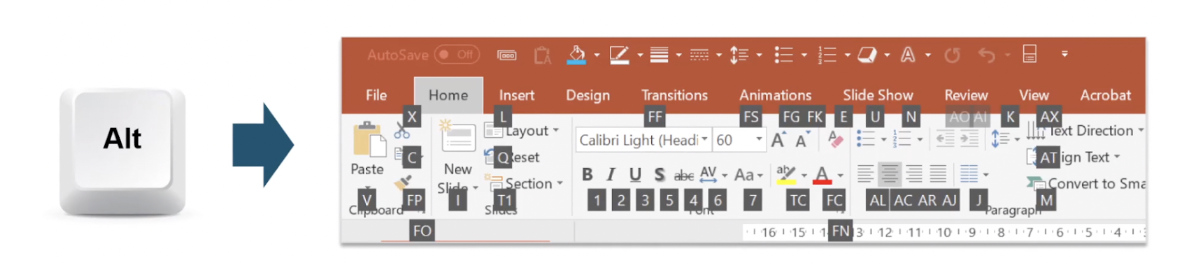
Shortcut keys are keyboard combinations that replace buttons you manually click. Instead of scrolling your mouse around and going through several layers of menus, you can use shortcut keys to perform tasks in seconds. Here are a few of the most helpful shortcuts for building presentations:
You can create your combinations or view the default combinations by looking at your ribbon layout. Then, press Alt followed by the corresponding letter.
Why recreate the wheel when there are dozens of incredibly designed presentations you can use?
Using a template will save you time and boost your presentation’s look. A template doesn’t mean you’re copying someone else’s presentation. Instead, you’re using a layout that successfully works. All you need to do is plug in your information and you’re ready to go.
It will save you hours you’d otherwise spend creating shapes, placing images, and selecting fonts.
Your business might consider creating one template for company-wide use so that all presentations are consistent.
Prezent users save 70% of the time by using our 35,000+ brand-approved designs to build stunning and unique business presentations. Our templates are compatible with Microsoft 365 and Google Slides.
Did you know you can customize your PowerPoint toolbar?
Your toolbar has your most important items front and center for easy access. If there are features and tools you use more often, you can add those to the quick access toolbar so they are available to you from any screen.
PowerPoint add-ins are companion apps that help you create engaging slides easier and faster. There are a variety of add-ins to choose from, and many are available for free.
How much of your presentation creation is re-entering data from documents?
You can speed up the data entry process by converting PDFs to slides using tools like PDFConverter. The tool extracts text and visual elements from the PDF, making the content editable and easy to insert into a presentation.
Before you start building your slides, take a step back and create a storyboard to give your presentation structure and flow.
Think of the most pertinent information, images, and data you want to present before creating your presentation. That way, you only make slides for what you know you’ll use.
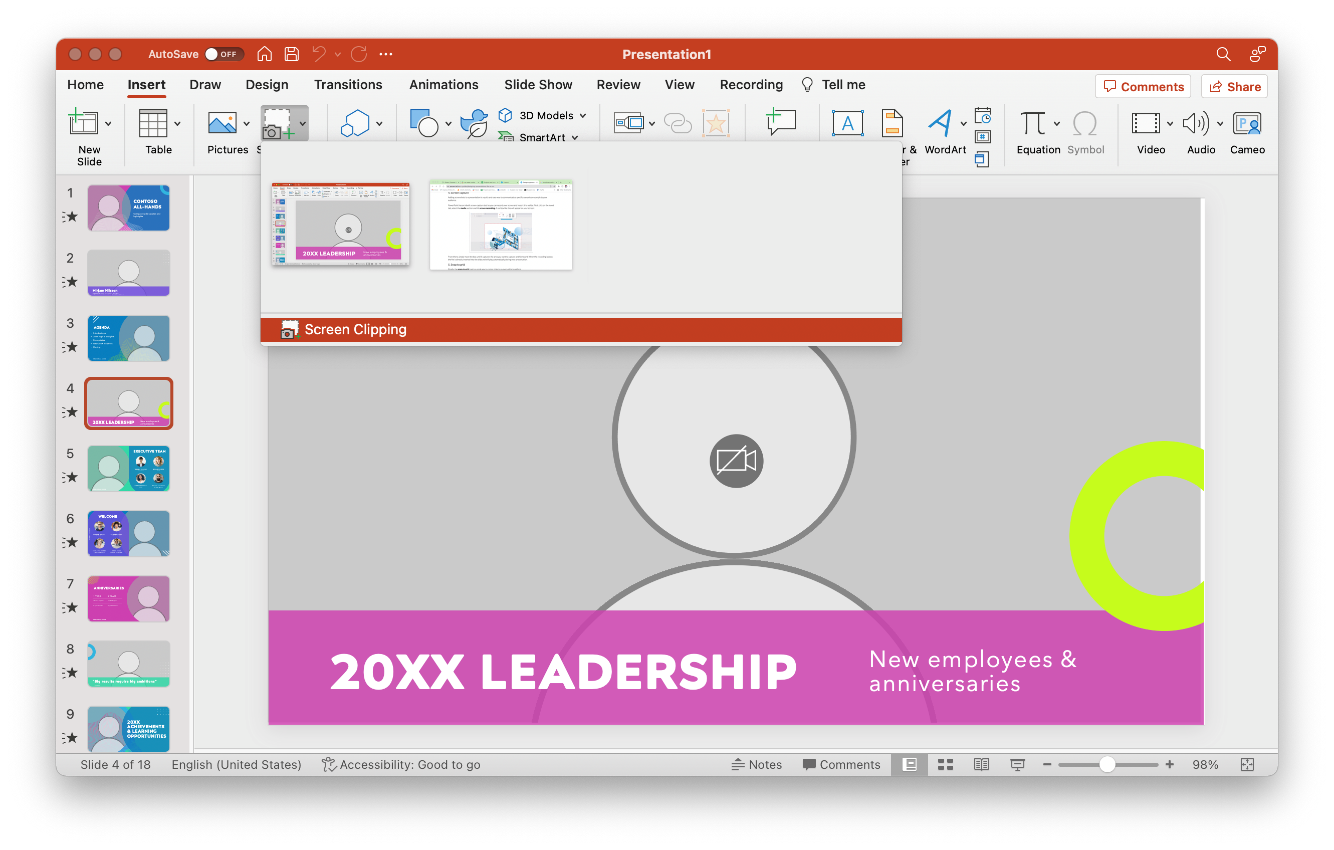
Presenters commonly use screenshots in their presentations but taking a screenshot and inserting it into a presentation requires too many time-consuming steps. Thankfully, PowerPoint can now save you time with its built-in screen capture tool.
You can either select a window you have opened or manually choose your screenshot area using the screen clipping tool.
Your presentation grid is an invisible grid that helps you align objects. Rather than spending several minutes manually adjusting each object to align with others on the slide, you can snap them to the grid and let your presentation tool do the alignment for you.
If you can’t see the grid, select the View tab and turn it on under the grid settings.
Enter a new generation of presentation creation with Prezent—the first enterprise AI presentation maker designed to help enterprise teams build better business presentations faster. With Prezent, you can create hyper-personalized slide decks beautifully designed with your company’s branding.
Access a library of 35,000+ slides right at your fingertips and become a more effective communicator with Prezent’s built-in learning curriculum that shows you how to convey your message and why that particular slide layout and storyline work best.
See how Prezent can enhance your business presentations and uplevel your communication skills. Sign up for our free trial or book a demo today!

Abdulla is the VP of Growth Marketing at Prezent AI with over 14 years of experience in digital marketing and SaaS growth. He has worked with leading startups such as Clearout and Simplilearn, driving organic growth, scaling revenue, and building high-impact SEO and content strategies. Passionate about data, AI, and performance marketing, Abdulla focuses on turning search and storytelling into measurable business outcomes. You can connect with him on LinkedIn.