Last Updated :
October 27, 2022
Jessica Cara

Does your presentation need a little help?

Feeling a little lost while creating your presentation? You’re not alone.
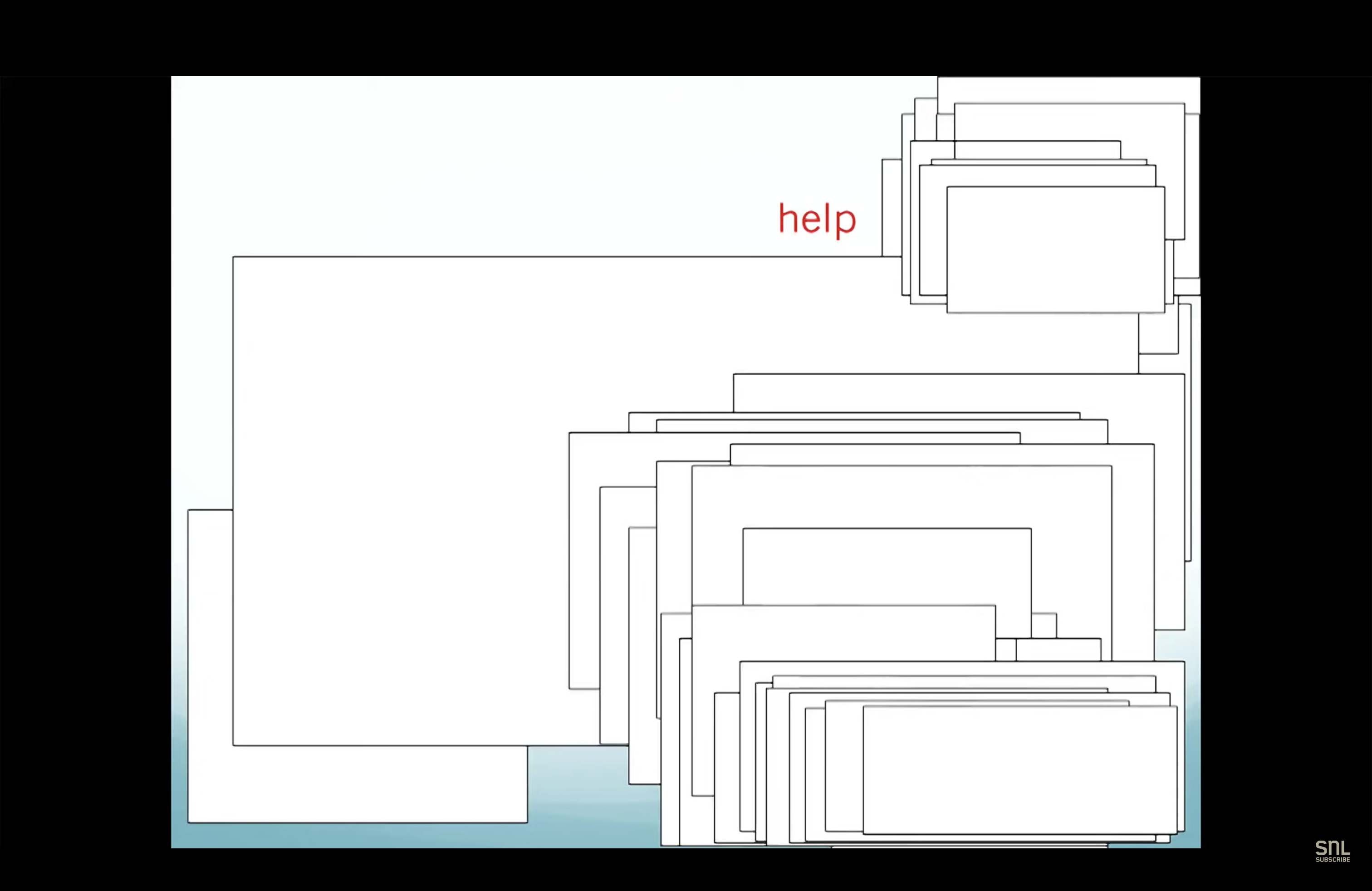
two women explaining does your presentatin need help

Feeling a little lost while creating your presentation? You’re not alone.

In this SNL sketch we see two receptionists, Henriette and Nan (played by Kate McKinnon and Aidy Bryant), struggle to build their PowerPoint presentation during a Microsoft workshop.

We know this sketch is an exaggeration purely meant for fun, but Henriette and Nan share a feeling that many of us can relate to: Building PowerPoint presentations is tough.

So, if you're finding yourself feeling like Henriette and Nan, use these tools from our Prezent Guides to help supercharge your slides! ⚡️

1. Pick an engaging slide layout

An effective slide design can clarify the meaning of an idea or message and help you better engage with your audience. At Prezent, we've assessed over 1 million slides from our customers' presentations. With that data, we’ve found that there are 3 main types of slide designs that stand out above the rest.

  • System layouts. Perfect for presenting ideas that are independent of one another.
  • Movement layouts. Ideal presentation style if your ideas or topics need to be presented in order or follow a storyline.
  • Time layouts. Best used when the ideas in a presentation are connected.

2. Add data efficiently

Data is crucial to almost every presentation—but add too much of it and you run the risk of overloading your audience or losing their attention.

  • Do not mislead. Misleading data is a surefire way to lose your audience’s attention and, more importantly, their trust. Ensure the details of your visuals (bar graphs, pie charts, etc.) communicate your data accurately.
  • Make your point. Don’t be afraid to highlight specific data to help your audience take notice. This can be done using arrows or other graphic elements to emphasize what you want your audience to understand. Visual communication elements like annotated screenshots can be quite useful in such cases.

3. Bring in images (the right way)

Adding images and photos to your presentation can greatly help your audience when it comes to absorbing information and key facts. But too many images can distract from the main points you want to convey. Here are 3 ways you can use images in presentations—the right way.

  • Crop with purpose. Crop your images to bring important elements, like people, into focus. For example, cropping off a person’s chin or forehead can make your overall design look unprofessional. Make sure each image is clearly visible and highlights the entirety of the element you’re trying to show.
  • Images should not obstruct. Ideally, your images should take up no more than a third of your slide layout, especially if you’re also including text or data. Too large of an image can make your presentation hard to understand or distract from the main points you want your audience to focus on.
  • Don’t stretch images. Stretching images horizontally or vertically can make your presentation appear rushed and unprofessional. Plus, it just looks weird! You can lock in the dimensions of your image while resizing it by holding down the Shift key.

4. Learn PowerPoint shortcuts

Build presentations faster with PowerPoint shortcuts. Here are 7 timesavers used by experts:

  • Press ALT to open your access keys—shortcuts pre-built into your keyboard that can be used to change the font and colors, create new slides, and more.
  • Use Ctrl + Shift + ←/→ (left/right arrow) to quickly select text without having to use your mouse.
  • Use Ctrl + ] / [ (open/close bracket) to move objects (text boxes, images) between layers swiftly.
  • Press Shift + an arrow key to resize images quickly while maintaining the image’s proportions.
  • Use Alt + Shift + ↑/↓ (up/down arrow) to move bullet points up or down a list without copying and pasting each statement.
  • Hit Ctrl + Shift + R/L/J/E (Right, Left, Justify, Centre) to neatly align paragraphs in your presentation.
  • Press Ctrl + Shift + >/< (Greater/lesser than) to speedily resize fonts on your slide.

5. Use hacks like a pro

There are more than 450 different tools and features offered in PowerPoint. But here are the 5 hacks most commonly used by design pros.

1. Build a quick access toolbar. PowerPoint allows you to build and customize your own toolbar to make easy changes to text, images, and layouts.

Add your favorite commands to the toolbar by clicking the white downward-facing triangle above the Ribbon tab, then click More Commands.

2. Power up with PowerPoint Add-ins. PowerPoint offers a variety of free and paid add-ins that can help bring your presentation to the next level. You can search through the entire library in the Microsoft Store.

3. Use elbow connectors to draw arrows. Use PowerPoint’s elbow connector feature to draw arrows or join objects on your slides quickly. Elbow connectors automatically snap to the center of an object to save you time and can be formatted in different colors and sizes.

4. Include screen captures. PowerPoint has an inbuilt screen capture tool so you can record your screen and easily import it to a slide. Adding screenshots to a presentation can be an effective way to illustrate a specific scenario or example.

5. Snap to grid. The snap-to-grid tool is a fast way to center objects throughout your slides. To access this tool, click on the View tab and select Grid settings. When you turn on Snap to Grid, your slides will show background lines to help align objects.  

Professional and beautiful slide design can take hours—but it doesn't have to with Prezent. 

Learn how you can save time (and money) with Prezent—the AI-powered presentation productivity platform on a mission to democratize business communication. Sign up for our free trial or book a demo today!

Ready to create impactful presentations?

Try for free
No items found.
No items found.

Related resources

BLOG
Niyati Mahale
April 6, 2026
14 latest AI tools for business, productivity, and workflows (2026)
Explore the latest AI tools in 2026 for business, productivity, and workflows. Compare tools that help you create, automate, and deliver better outputs faster.
BLOG
Niyati Mahale
April 6, 2026
Canva review (2026): features, pricing, pros & cons explained
This Canva review covers features, pricing, pros, cons, and real-world usability. See how Canva performs across design workflows and where it falls short for business communication.
BLOG
Supriya Sarkar
April 1, 2026
The best B2B AI tools for enterprise teams: Features, pros and cons, pricing, and use cases
Find the best B2B AI tools for enterprise teams. Evaluate features, pricing, pros and cons, and use cases to choose tools that fit your workflows and deliver measurable impact.
BLOG
Niyati Mahale
April 1, 2026
11 best Genspark AI alternatives I tested for 2026
This guide covers the best Genspark AI alternatives for content, SEO, and presentations. Compare features, pricing, and real-world usability to find the right tool.
BLOG
Supriya Sarkar
April 1, 2026
What is presentation software? A complete guide to how it works, what to look for, and how to choose the right one
What is a presentation software? This guide explains how it works, key features to look for, and how to choose the best presentation software.
BLOG
Supriya Sarkar
March 31, 2026
PopAI review: Complete breakdown of features, pricing, and alternatives
PopAI review: Is this AI tool right for business presentations? Explore features, pricing, limitations, and enterprise alternatives.
BLOG
Niyati Mahale
March 27, 2026
Microsoft Copilot review for presentations: features, pricing & limitations
Explore Microsoft Copilot’s features, pricing, and limitations for presentations. See how it performs and whether it fits your workflow.
BLOG
Niyati Mahale
March 27, 2026
Adobe Review (2026): Is Adobe InDesign Worth It for Business Use?
This Adobe review evaluates Adobe InDesign’s features, pricing, and usability. See how it performs for business workflows and where it falls short.
BLOG
Niyati Mahale
March 27, 2026
Best AI Pitch Deck Generators in 2026 (Tested & Reviewed)
I tested the best AI pitch deck generators to see which tools actually help you build clear, structured, and convincing pitch decks faster.
BLOG
Supriya Sarkar
March 26, 2026
10 Best PopAI alternatives: Compare features, AI capabilities, pricing, and free plans
Find the best PopAI alternatives and AI presentation makers. Compare AI features, pricing, and free plans to create smarter, more professional presentations.
BLOG
Niyati Mahale
March 27, 2026
Best Plus AI Alternatives in 2026: Top 8 AI Presentation Tools
I tested the best Plus AI alternatives to see which tools actually create presentation-ready decks. Here are the top AI presentation tools worth using in 2026.
BLOG
Supriya Sarkar
March 27, 2026
Nano Banana review: Evaluating strengths, workflow gaps, and AI solutions for enterprise presentations
Nano Banana review for enterprise presentations. Explore visual strengths, identify workflow gaps, and see how teams use AI to build faster, executive-ready presentations.
Free 14-Day Trial*

Customized On-Boarding*