Last Updated :
October 11, 2024
Maithili Rao

Creating an informative presentation: Tips to impress audiences at work

Master the art of the informative presentations with tips to deliver information in a clear, engaging way.
team discussing on informative presentation

Delivering an informative presentation can be challenging. You might think, “How do I capture the audience’s attention, educate them on a complex subject, and ensure they walk away with clear insights?”
An informative presentation is more than just presenting facts; you must structure your content to be engaging, memorable, and actionable.

This article will take you through the essential steps of creating an informational presentation that educates and leaves a lasting impression. Explore the key tips, pro strategies, and real-life business examples to make your presentation stand out. In the end, you’ll know how to effectively deliver impactful insights through your presentations and connect with your audience.

What is an informative presentation?

An informative presentation educates an audience on a specific subject, providing data, research, and insights to increase their understanding. The main goal is to simplify complex topics and help the audience with actionable knowledge they can use.

Yet, just presenting facts isn’t enough—how you structure and deliver the content makes the presentation truly informative and memorable. To simplify the process, many teams now use tools from the best AI presentation makers category to organize content, design slides, and visualize insights more effectively.

A good informative presentation should:

  • Simplify complex ideas: Break down technical jargon and complicated concepts for easy understanding.
  • Answer critical questions: Anticipate and address your audience’s main concerns or interests.
  • Provide clear takeaways: Leave the audience with insights or action points they can apply immediately.

💡Pro tip: Start your presentation with background information on the topic and then move into more advanced material (everyone in your audience may not know about the topic or even have the same level of knowledge).

7 Tips to create an informative presentation

An informative presentation aims to inform the audience about a specific topic. To stand out and leave a lasting impression on your audience, here are some tips to help you deliver a great presentation:

  • Always start with solid context: You must tell your audience why the statistics are important and how they connect to your main message. Start your presentation with good context.
    • For example
      If you say, "80% of clients liked our new service," add specific information like, "This is a 30% increase from last year, showing that our recent marketing efforts are working well."
  • Highlight one important point per slide: Each slide should have one key piece of information for your audience or listener to avoid overwhelming them. This technique helps them remember your insights better.
    • For example
      If you are presenting about customer satisfaction, use one slide for each important insight, i.e., "Customer satisfaction increased by 15% in Q3," with a clear visual. This is much better than putting lots of information on one slide.
  • Keep it simple: Keep your presentation to 10 slides, aim to deliver it in 20 minutes, and ensure the font size is at least 30 points (use the 10-20-30 rule). This will keep your presentation focused, engaging, and easy for your audience to follow.
    • For example
      In a sales report presentation, focus on the most important sales figures and trends across ten slides. Make sure each slide is clear, the font is easy to see from every part of the room, and the presentation is delivered within the time limits.
  • Reveal information gradually: Present your information step-by-step with animations or transitions. This builds excitement as they look forward to the next essential information.
    • For example
      If you are presenting a new project timeline, reveal each phase gradually using animations. Start with the first phase and only show the following phases as you discuss them so your audience focuses on each point.
  • Summarize key points in each slide: Use bullet points or short sentences to summarize the content of each slide. This helps your audience remember the most critical information.
    • For example
      If you are talking about the benefits of a new software tool, include a summary at the bottom of that slide: "Key benefits: increased efficiency, reduced costs, improved user satisfaction." This quick summary reminds your audience of the main points.
  • Use a storytelling approach with your data: Instead of just showing numbers, weave your stats/data into a story. This will help your audience members better understand and connect with the information.
    • For example
      If you present employee survey results, tell a story about how a new idea positively impacted team morale. Use data to show the journey: "Before we changed our work-from-home policy, our engagement scores were 60%. Afterward, they rose to 85%—here's how it happened."
  • Use tools to create great visuals: It is important to include visuals in a presentation. Visuals can make your presentations 70% more memorable. Use easy-to-use tools like PowerPoint or Prezent to make attractive graphics and turn complex data into effective slides.
    • For example
      If you are presenting to your team about market trends, use Prezent to create high-quality graphs and infographics quickly. The software can ensure your visuals look professional and improve your presentation overall.

How do you deliver an informative presentation effectively?

Delivering an informative speech requires preparation, confidence, and audience engagement. Here are some tips to ensure your presentation is impactful and informative:

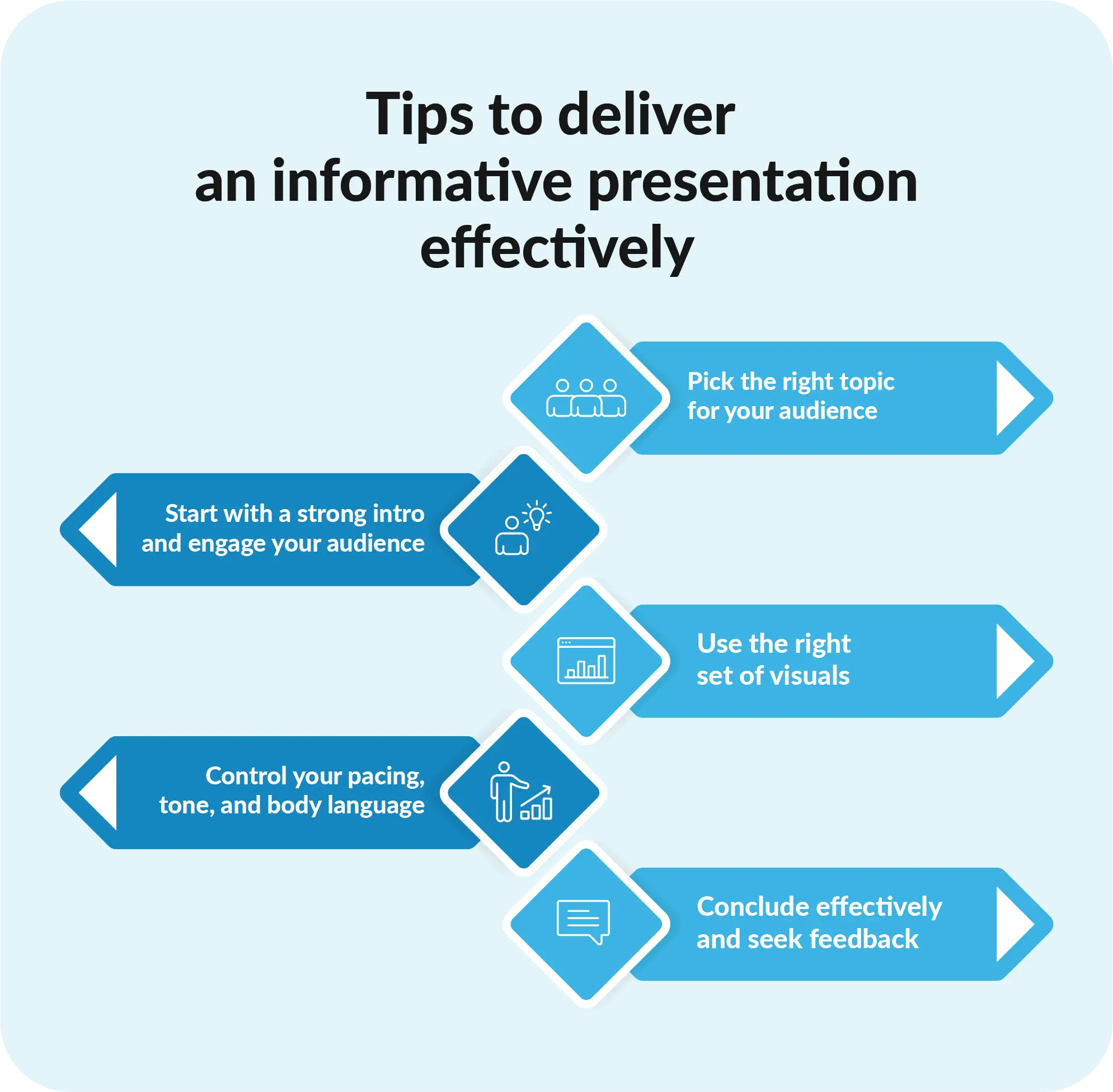
1. Pick the right topic for your audience

Ensure you know your topic well and structure your presentation with a clear introduction, body, and conclusion. Personalize your content to the audience’s interests and knowledge level. For example, senior executives might be more interested in the big-picture strategy, while technical teams need more detailed insights. Understanding your audience can help you pick the right informative speech topic.

2. Start strong and engage your audience

Start your presentation with an interesting fact, anecdote, relatable quote, or rhetorical question to keep your audience engaged. Clearly state the purpose of your presentation at the beginning and ensure the audience relates to the topic. Encourage the audience to ask questions and prompt them to discuss different ideas to foster interaction.

3. Use appropriate visuals

Use visual aids such as slides, images, charts, and infographics to illustrate key points. Communicate the information using a clear and consistent design in your presentation.

4. Control your pacing, tone, and body language

Speak clearly and confidently, varying your tone and pace to maintain interest. Public speaking can be scary sometimes. Yet, using natural gestures and maintaining eye contact to connect with your audience can help you present your speech well. One of the best ways to engage with an audience is to maintain positive body language and create a dynamic presentation environment.

5. Conclude effectively and seek feedback

In your conclusion, summarize key points and provide a call to action to encourage the audience to apply the information presented. Afterward, seek feedback to identify strengths and areas for improvement for future presentations.

FAQs

1. What is the primary goal of an informative presentation?

The goal of your speech or presentation should be to teach the audience about a specific topic by providing clear, factual information. It aims to enhance understanding, raise awareness, and share knowledge without persuading or advocating for a particular viewpoint.

2. How long should a presentation typically be?

The length can vary, but a good guideline is to keep it between 10 and 20 minutes. This duration allows you to cover key points effectively while keeping your audience engaged. Consider the context and the complexity of the topic when determining the length.

3. What are some effective techniques for engaging the audience during a presentation?

You can ask open-ended questions, incorporate multimedia elements like videos or infographics, and encourage audience participation through polls or discussions. Additionally, relatable anecdotes or real-life examples can help make the information more accessible and exciting.

4. How can I organize my content logically for a presentation?

To organize your content logically, start with a clear outline that includes an introduction, main points, and a conclusion. In the introduction, state your topic and purpose. In the body, present 2-4 key points logically, using transitions to connect them. Finally, summarize the main points and reinforce the topic's significance.

5. What role do visual aids play in any type of presentation?

Visual aids play a crucial role in all types of presentations by enhancing understanding and retention of information. They can help clarify complex concepts, illustrate data through graphs or charts, and keep the audience engaged. However, it’s essential to use visual aids that are clear, relevant, and well-designed to avoid overwhelming the audience.

How can Prezent help you elevate your informative presentations?

Informative presentations require a delicate balance of clarity, structure, and engagement—and Prezent can help you achieve this balance effortlessly. With Prezent, you can streamline the process of creating presentations, ensuring your content is informative, visually compelling, and aligned with your business or organization.

Here’s how Prezent can enhance your presentations:

  • Instant slide generation: Upload your content, and Prezent will create brand-aligned, professional slides in seconds, saving you hours of design work.
  • Data visualization tools: Presenting data doesn’t have to be daunting. Prezent transforms raw data into easily digestible graphs and charts, helping you communicate complex information in an effective way.
  • Ready-made templates: Whether you’re addressing executives, clients, or technical teams, Prezent offers a vast library of 35,000+ customizable templates to fit your brand.
  • AI-powered content suggestions: Need help simplifying a complicated concept? Prezent’s smart tips can help you clarify key points, making your presentation more accessible and engaging.

By using Prezent, you can focus on delivering impactful content while letting the platform handle the design and organization. This ensures that your presentation is as polished as it is informative. Prezent can help you create presentations seamlessly, saving you time to focus on your core competencies.

If you want to quickly create clear and concise presentations, you can schedule a demo or explore the platform features with a 14-day free trial.

Ready to create impactful presentations?

Try for free
No items found.
No items found.

Related resources

BLOG
Supriya Sarkar
April 1, 2026
The best B2B AI tools for enterprise teams: Features, pros and cons, pricing, and use cases
Find the best B2B AI tools for enterprise teams. Evaluate features, pricing, pros and cons, and use cases to choose tools that fit your workflows and deliver measurable impact.
BLOG
Niyati Mahale
April 1, 2026
11 best Genspark AI alternatives I tested for 2026
This guide covers the best Genspark AI alternatives for content, SEO, and presentations. Compare features, pricing, and real-world usability to find the right tool.
BLOG
Supriya Sarkar
April 1, 2026
What is presentation software? A complete guide to how it works, what to look for, and how to choose the right one
What is a presentation software? This guide explains how it works, key features to look for, and how to choose the best presentation software.
BLOG
Supriya Sarkar
March 31, 2026
PopAI review: Complete breakdown of features, pricing, and alternatives
PopAI review: Is this AI tool right for business presentations? Explore features, pricing, limitations, and enterprise alternatives.
BLOG
Niyati Mahale
March 27, 2026
Microsoft Copilot review for presentations: features, pricing & limitations
Explore Microsoft Copilot’s features, pricing, and limitations for presentations. See how it performs and whether it fits your workflow.
BLOG
Niyati Mahale
March 27, 2026
Adobe Review (2026): Is Adobe InDesign Worth It for Business Use?
This Adobe review evaluates Adobe InDesign’s features, pricing, and usability. See how it performs for business workflows and where it falls short.
BLOG
Niyati Mahale
March 27, 2026
Best AI Pitch Deck Generators in 2026 (Tested & Reviewed)
I tested the best AI pitch deck generators to see which tools actually help you build clear, structured, and convincing pitch decks faster.
BLOG
Supriya Sarkar
March 26, 2026
10 Best PopAI alternatives: Compare features, AI capabilities, pricing, and free plans
Find the best PopAI alternatives and AI presentation makers. Compare AI features, pricing, and free plans to create smarter, more professional presentations.
BLOG
Niyati Mahale
March 27, 2026
Best Plus AI Alternatives in 2026: Top 8 AI Presentation Tools
I tested the best Plus AI alternatives to see which tools actually create presentation-ready decks. Here are the top AI presentation tools worth using in 2026.
BLOG
Supriya Sarkar
March 27, 2026
Nano Banana review: Evaluating strengths, workflow gaps, and AI solutions for enterprise presentations
Nano Banana review for enterprise presentations. Explore visual strengths, identify workflow gaps, and see how teams use AI to build faster, executive-ready presentations.
BLOG
Niyati Mahale
March 27, 2026
11 Best SlideShare Alternatives for Sharing Presentations
Explore the best SlideShare alternatives for creating and sharing presentations. Compare tools for hosting, collaboration, design, and presentation analytics.
BLOG
Niyati Mahale
March 23, 2026
Beautiful.ai Review (2026): Features, Pricing, Pros & Cons
An in-depth Beautiful.ai review covering features, pricing, pros, and limitations to help you decide if it’s the right presentation tool for your needs.
Free 14-Day Trial*

Customized On-Boarding*